Channel Usage Guide
1. Overview
The Channel feature allows you to connect various communication platforms in FiraClaw, such as WeChat, QQ, WeCom, Feishu, DingTalk, etc., enabling you to interact with the CEO Agent through these channels and achieve AI assistant services anytime, anywhere.
2. Supported Channel Types
FiraClaw supports the following channel types:
WeChat: Interact with agents through WeChat public account or mini program
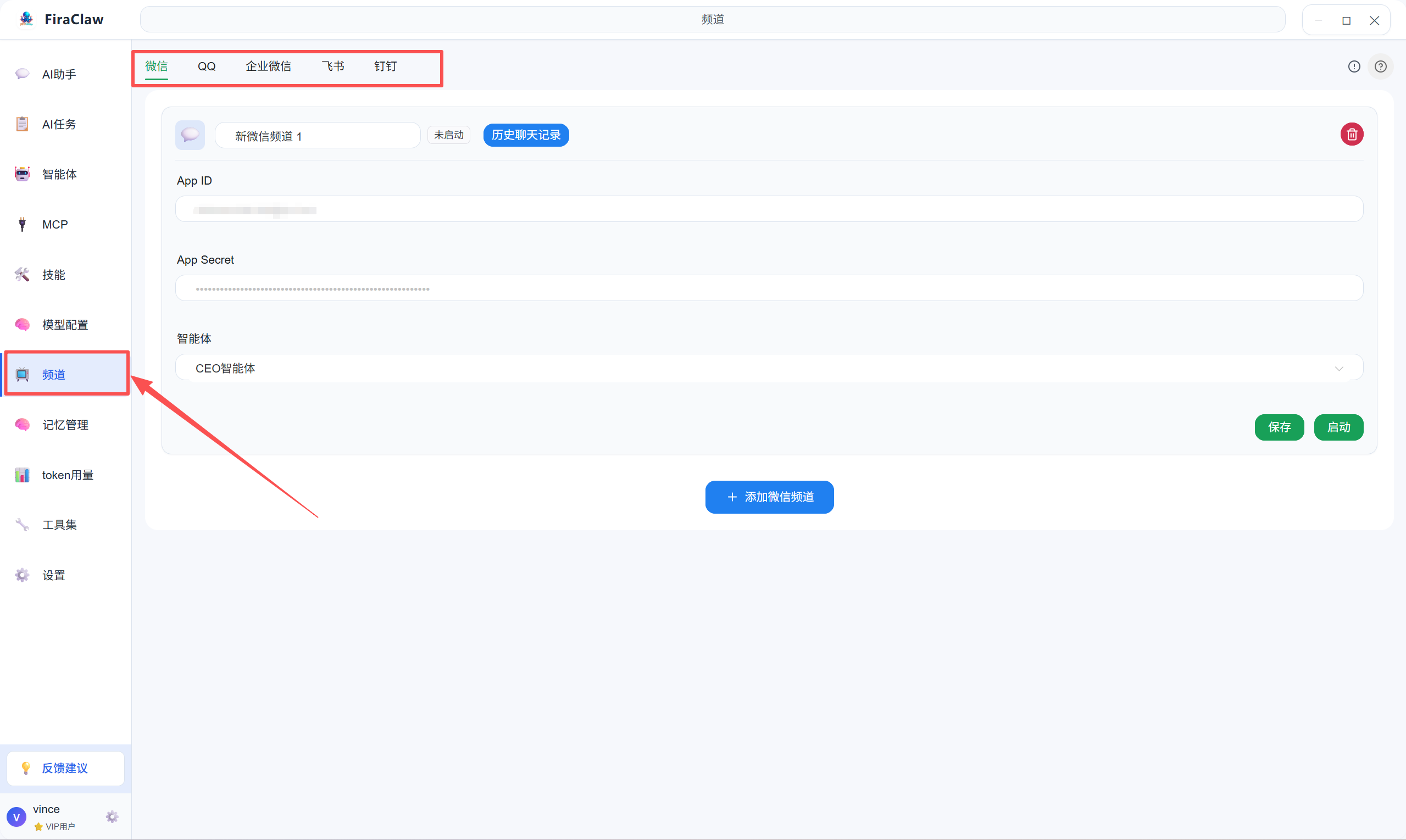
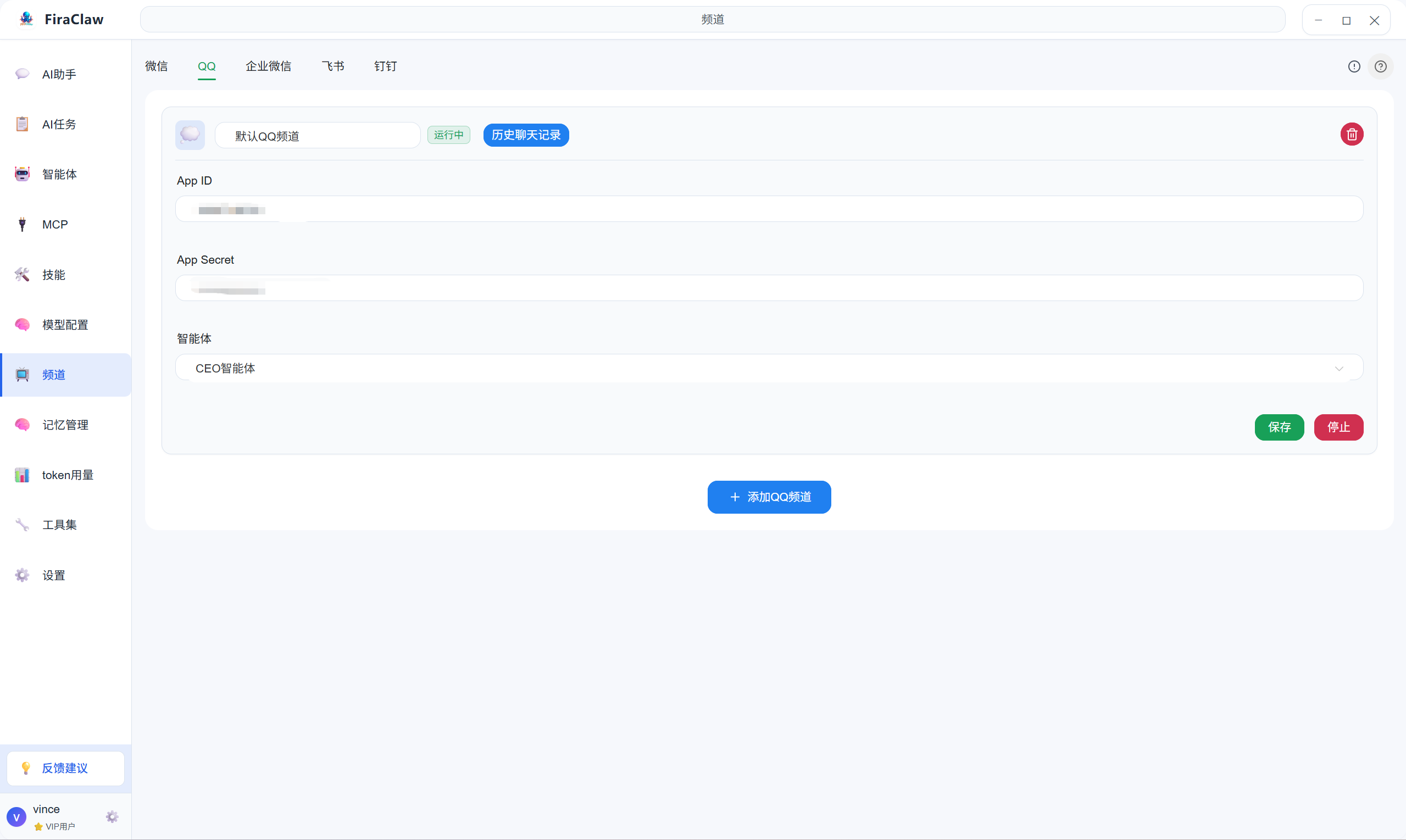
QQ: Interact with agents through QQ groups or QQ bots
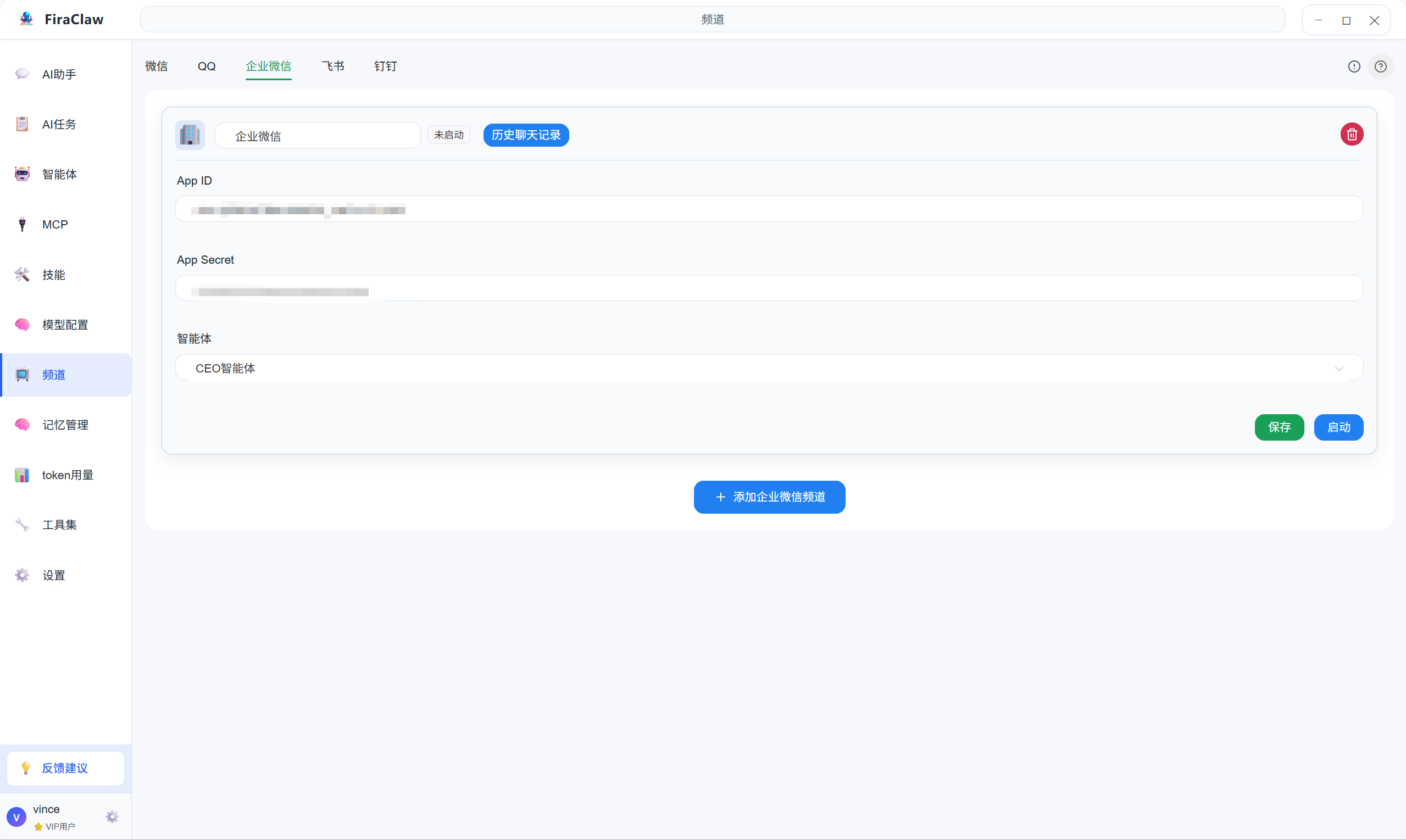
WeCom: Interact with agents through WeCom applications
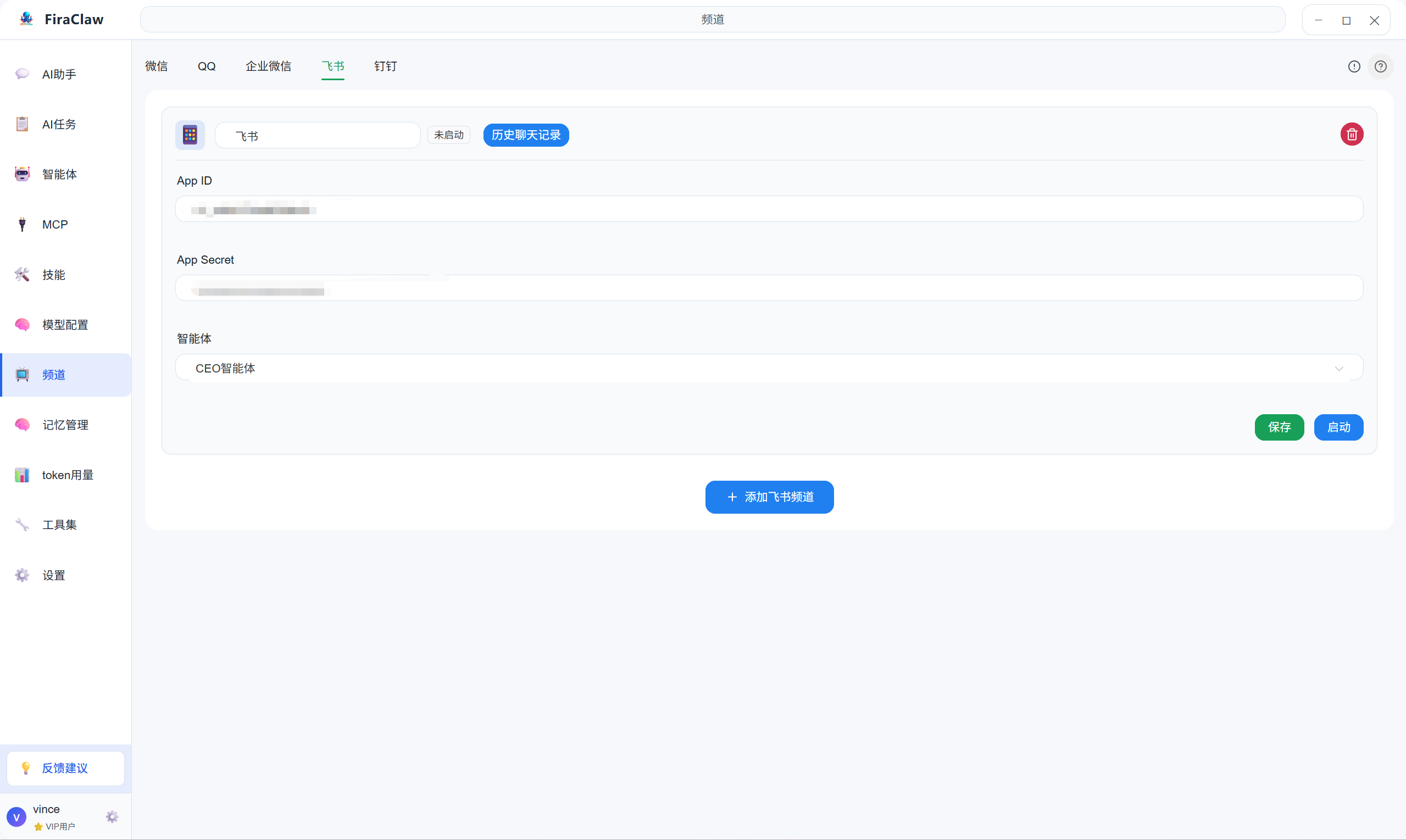
Feishu: Interact with agents through Feishu bots
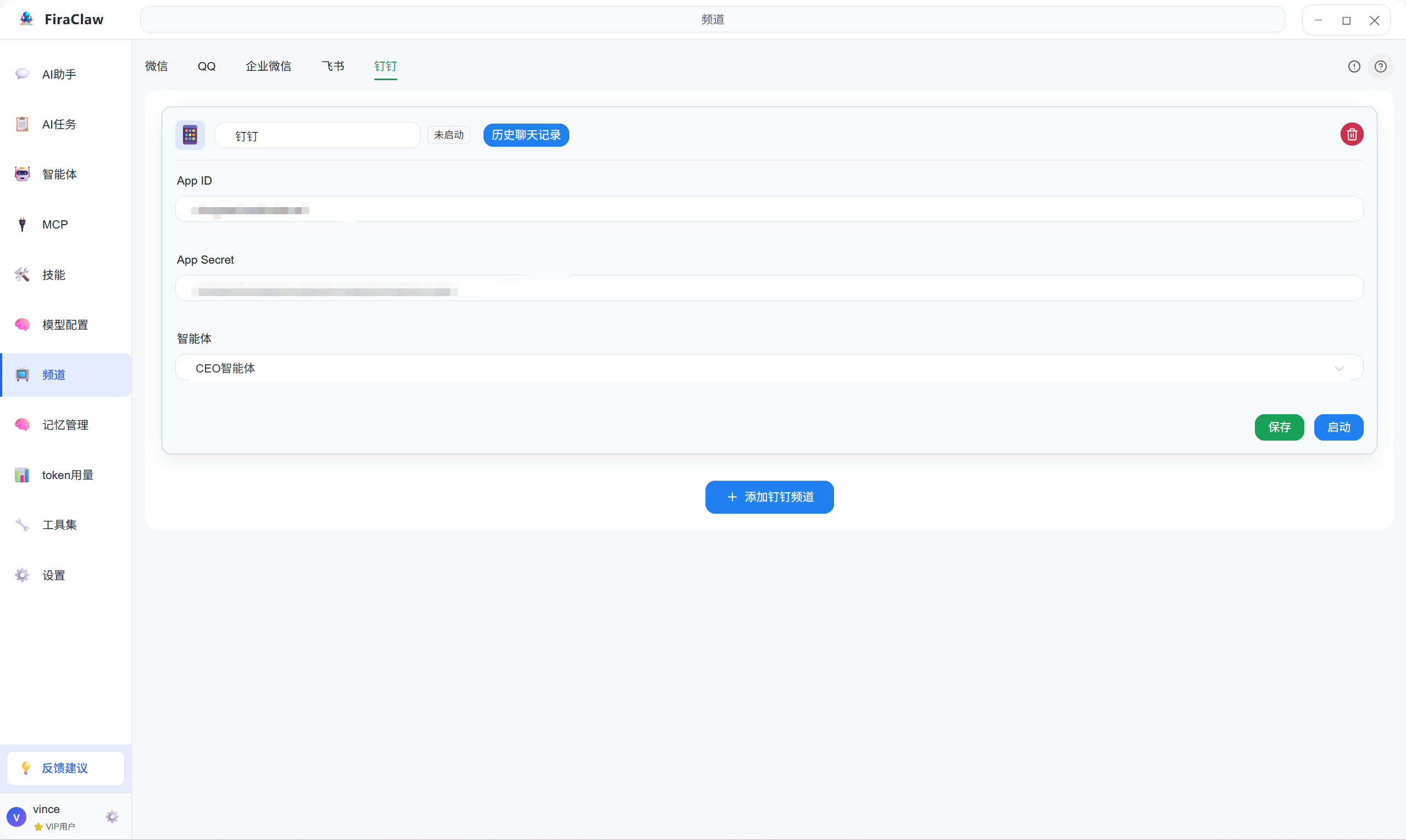
DingTalk: Interact with agents through DingTalk bots
3. Adding Channels
3.1 Adding WeChat Channel
- Click Channels in the left menu.
- Click the Add Channel button.
- Select WeChat as the channel type.
- Follow the prompts to complete the configuration of WeChat public account or mini program.
- Click the Save button to complete adding the WeChat channel.
3.2 Adding QQ Channel
- Log in to QQ Open Platform.
- Add a bot on the platform page and get the AppID and secret.
- Click Channels in the left menu.
- Click the Add Channel button.
- Select QQ as the channel type.
- Fill in the obtained AppID and secret.
- Click the Save button to complete adding the QQ channel.
Note: Multiple QQ channels can be added, each channel needs to be configured separately.
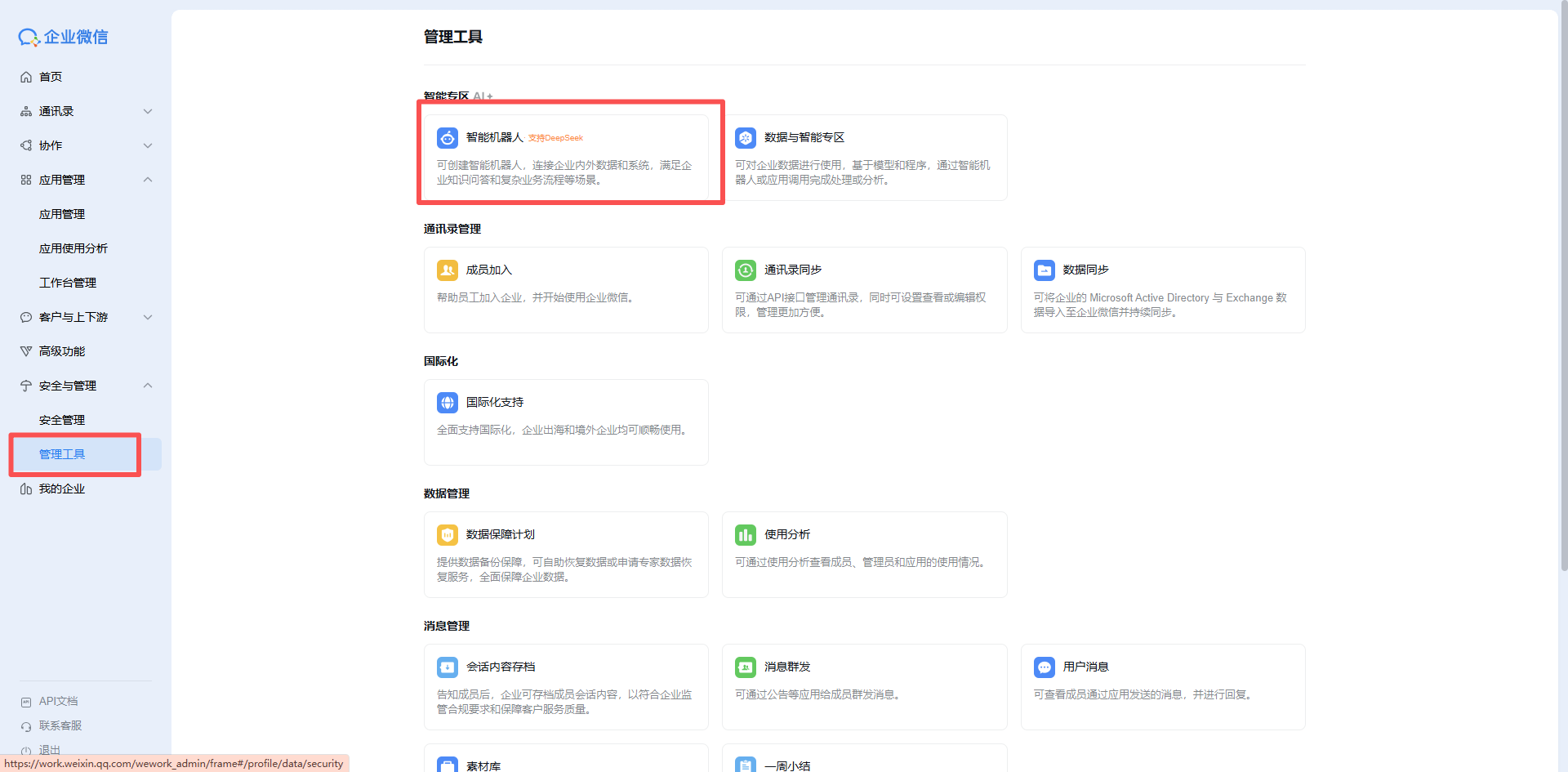
3.3 Adding WeCom Channel
Log in to WeCom Admin Console.
Refer to WeCom Intelligent Robot Official Documentation to complete bot creation and configuration.
Click Channels in the left menu.
Click the Add Channel button.
Select WeCom as the channel type.
Fill in the WeCom application related configuration information.
Click the Save button to complete adding the WeCom channel.
3.4 Adding Feishu Channel
- Log in to Feishu Open Platform Developer Console.
- Create an enterprise self-built application and create a bot in the application.
- Refer to Feishu Bot Development Documentation to complete configuration.
- Click Channels in the left menu.
- Click the Add Channel button.
- Select Feishu as the channel type.
- Fill in the Feishu bot related configuration information.
- Click the Save button to complete adding the Feishu channel.
3.5 Adding DingTalk Channel
- Log in to DingTalk Developer Console.
- Create an enterprise self-built application and create a bot in the application.
- In the application configuration, select Stream mode for message receiving mode (recommended).
- Get the application's AppKey and AppSecret.
- Click Channels in the left menu.
- Click the Add Channel button.
- Select DingTalk as the channel type.
- Fill in the DingTalk bot related configuration information (AppKey and AppSecret).
- Click the Save button to complete adding the DingTalk channel.
4. Managing Channels
4.1 Viewing Channel Status
In the channel list, you can see the status of each channel:
- Connected: Channel is successfully connected and can be used normally
- Disconnected: Channel is not connected and needs to be reconfigured
- Connection Error: Channel connection failed and configuration needs to be checked
4.2 Editing Channel
- In the channel list, find the channel that needs to be edited.
- Click the Edit button to modify the channel configuration.
- Click the Save button to apply changes.
4.3 Deleting Channel
- In the channel list, find the channel that needs to be deleted.
- Click the Delete button to confirm the deletion.
4.4 Enable/Disable Channel
- In the channel list, find the channel that needs to be enabled or disabled.
- Click the Enable or Disable button to switch the channel status.
5. Using Channels
5.1 Sending Instructions Through Channels
- In a connected channel, send a message to the FiraClaw bot.
- The bot will forward the message to the CEO Agent.
- CEO Agent processes the instruction and replies through the channel.
5.2 Channel Message Format
- Regular Instructions: Send your instruction directly, such as "Help me write an email"
- Task Creation: Use specific format to create tasks, such as "Create task: Remind me to have a meeting at 9 AM every day"
6. FAQ
Q1: What to do if channel connection fails?
A: Check if the channel configuration is correct, ensure network connection is normal, then try to reconnect.
Q2: Can I use multiple channels simultaneously?
A: Yes, you can use multiple channels simultaneously, each channel can independently interact with agents.
Q3: Will channel messages be stored?
A: Channel messages are temporarily stored for processing but will not be permanently saved, ensuring your privacy and security.
Q4: How to view channel usage?
A: In the channel list, you can view usage statistics for each channel, such as message count, active time, etc.