FiraClaw Quick Start Guide (v1.0.0)
Welcome to FiraClaw! This guide will help you complete the installation in 5 minutes and have your first conversation with your exclusive AI assistant.
Step 1: Download and Install
- Get the installer: Please visit the FiraClaw official website to download the installer for your system.
- Install the client:
- Windows users: Double-click the .exe file and follow the prompts to complete installation.
- macOS users: Double-click the .dmg file and drag FiraClaw to the Applications folder. Note: If you see "Cannot verify developer" when opening for the first time, please go to System Settings > Privacy & Security and click "Open Anyway".
Step 2: Log in to FiraClaw
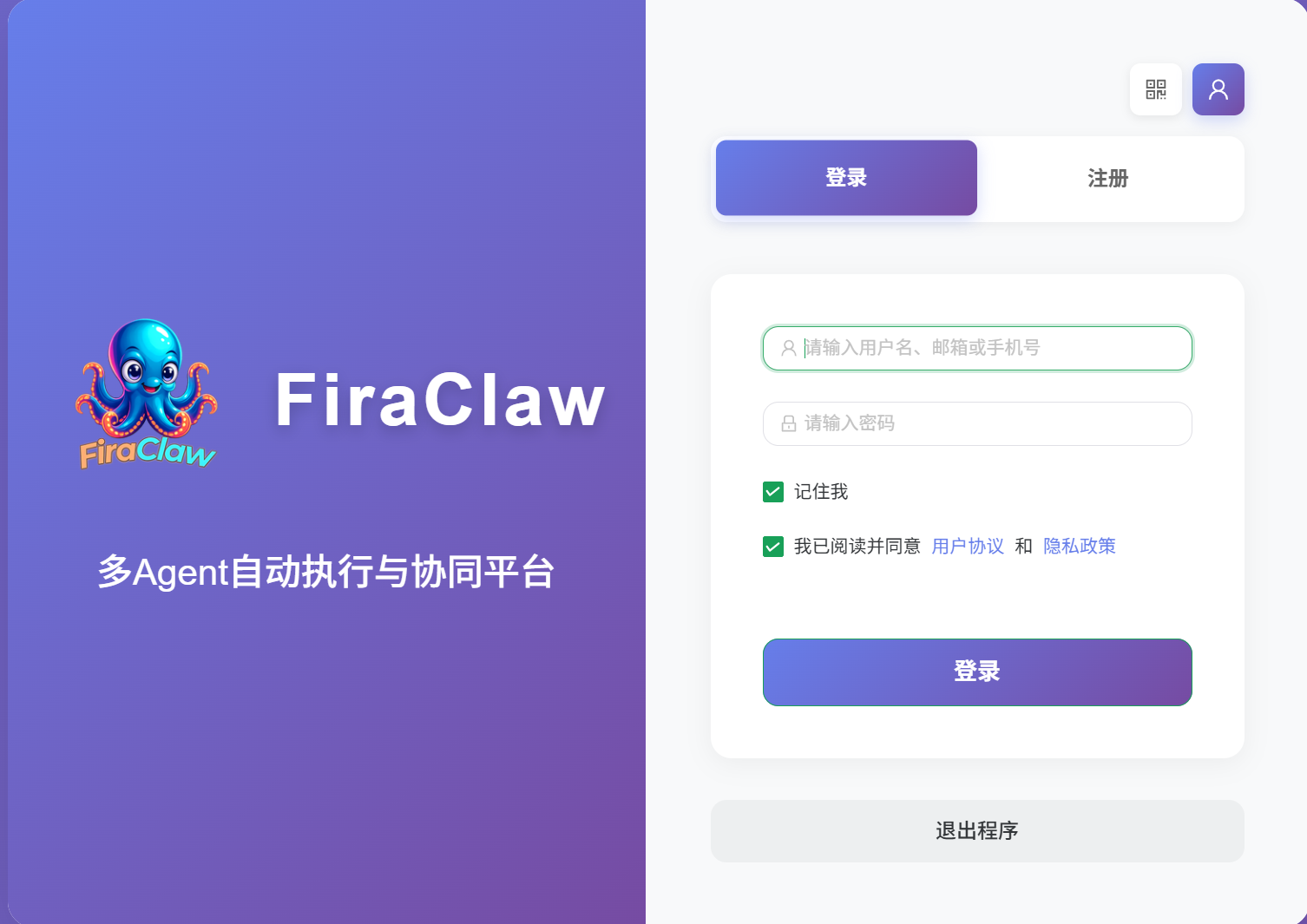
After opening the software, you can log in through any of the following methods:
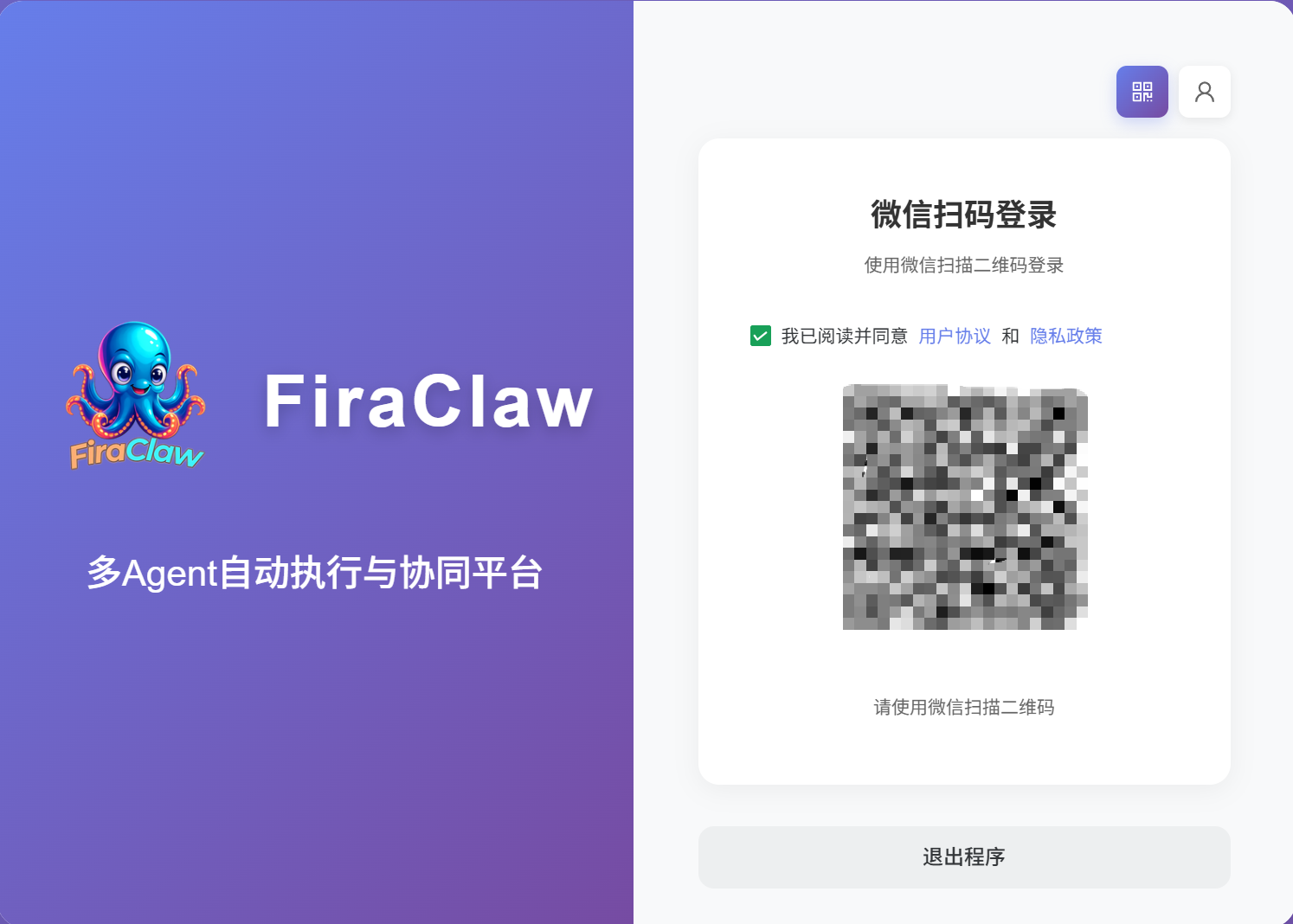
Recommended: WeChat QR Code Click "WeChat Login" and scan the QR code on screen with your phone to log in with one click, no additional registration needed.
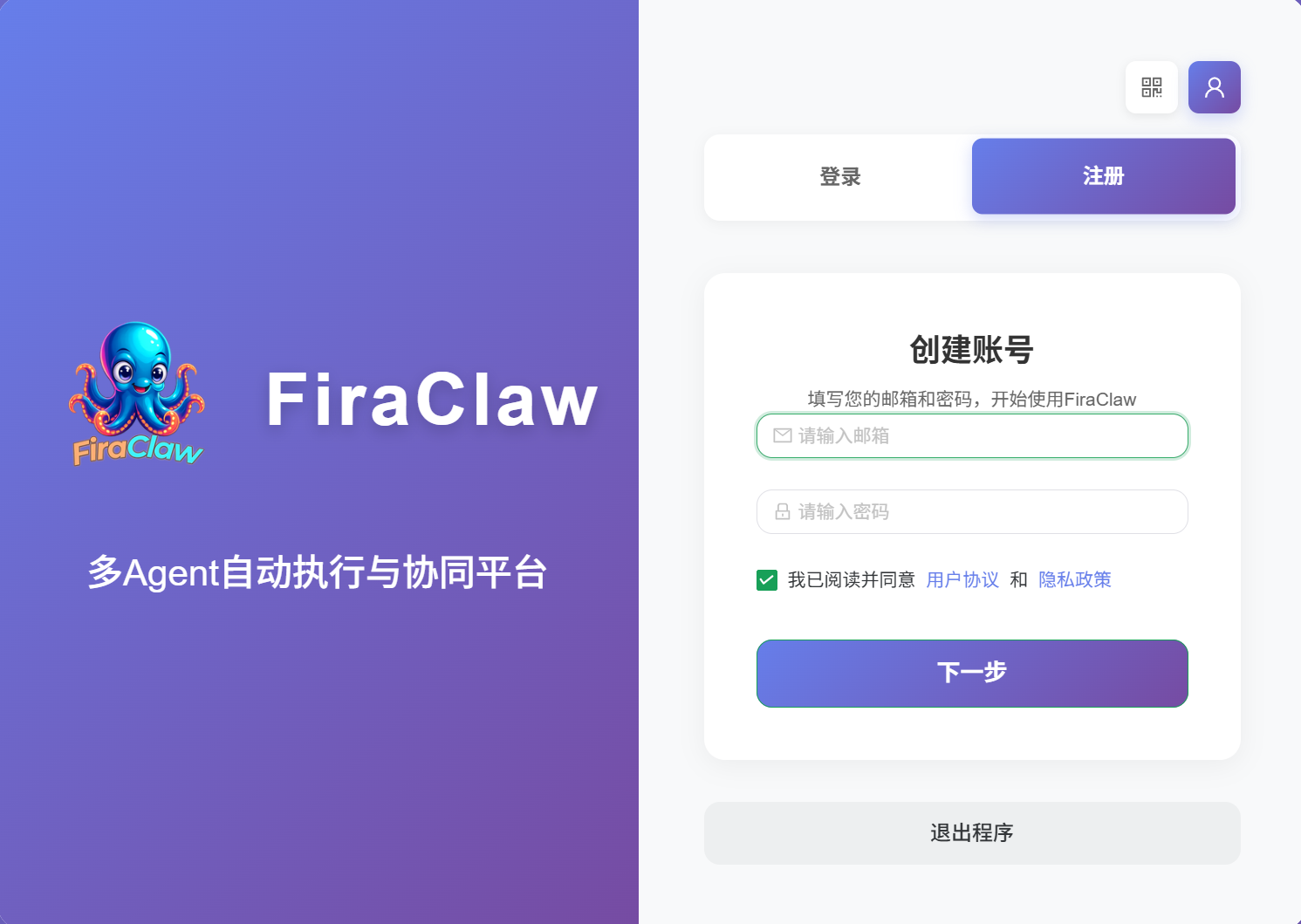
Alternative: Email Registration If you prefer not to bind WeChat, click "Email Registration", enter your email and password to complete registration and log in.
Step 3: Configure Your First Model (Required)
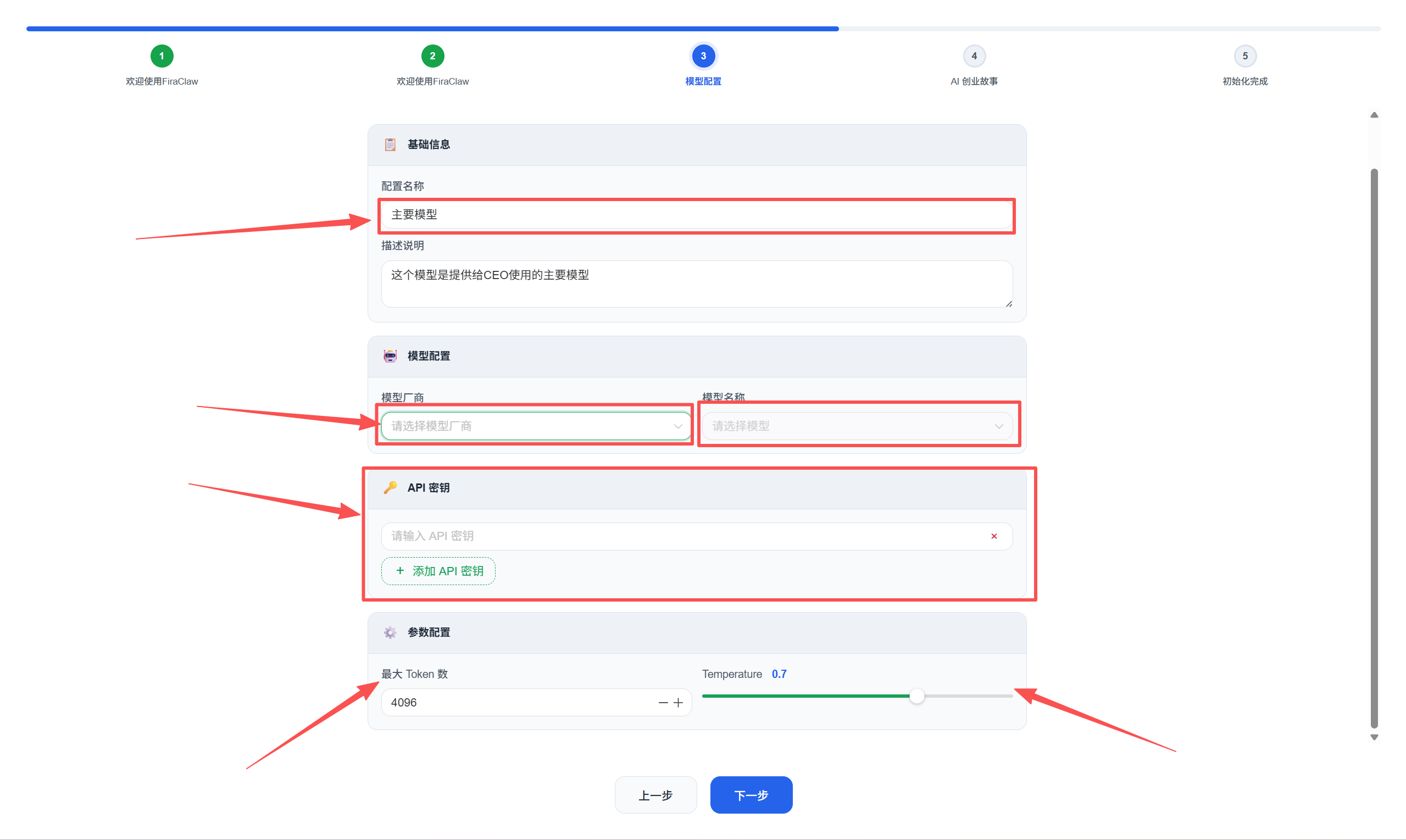
Before using the CEO Agent, you need to tell it which "brain" to use for thinking.
Initial Configuration Process
When you first start FiraClaw, the system will guide you through the model configuration:
Configure Models Anytime (System Features Page)
You can also configure models anytime through the system features page:
Click Model Configuration in the left menu.
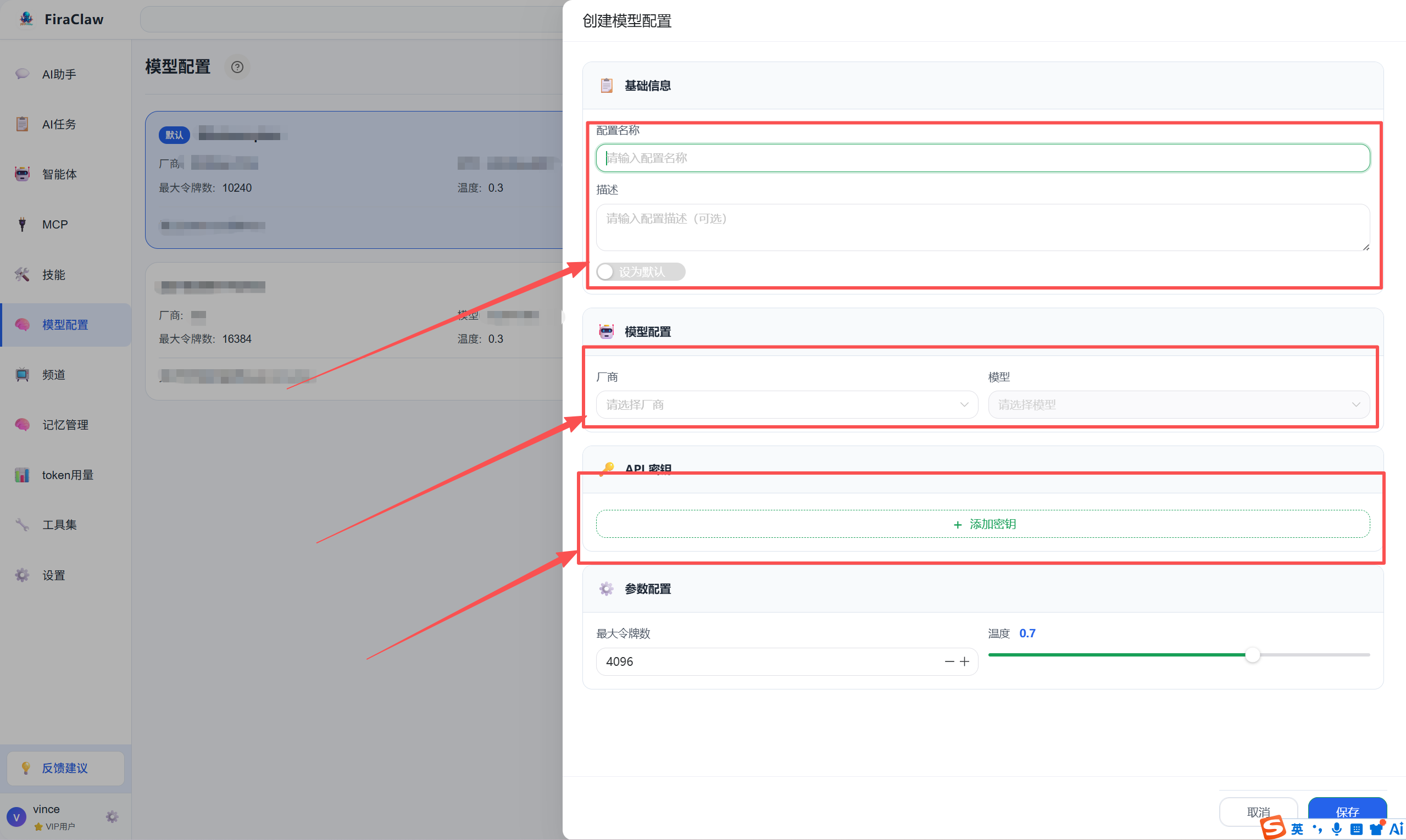
Click New Model.
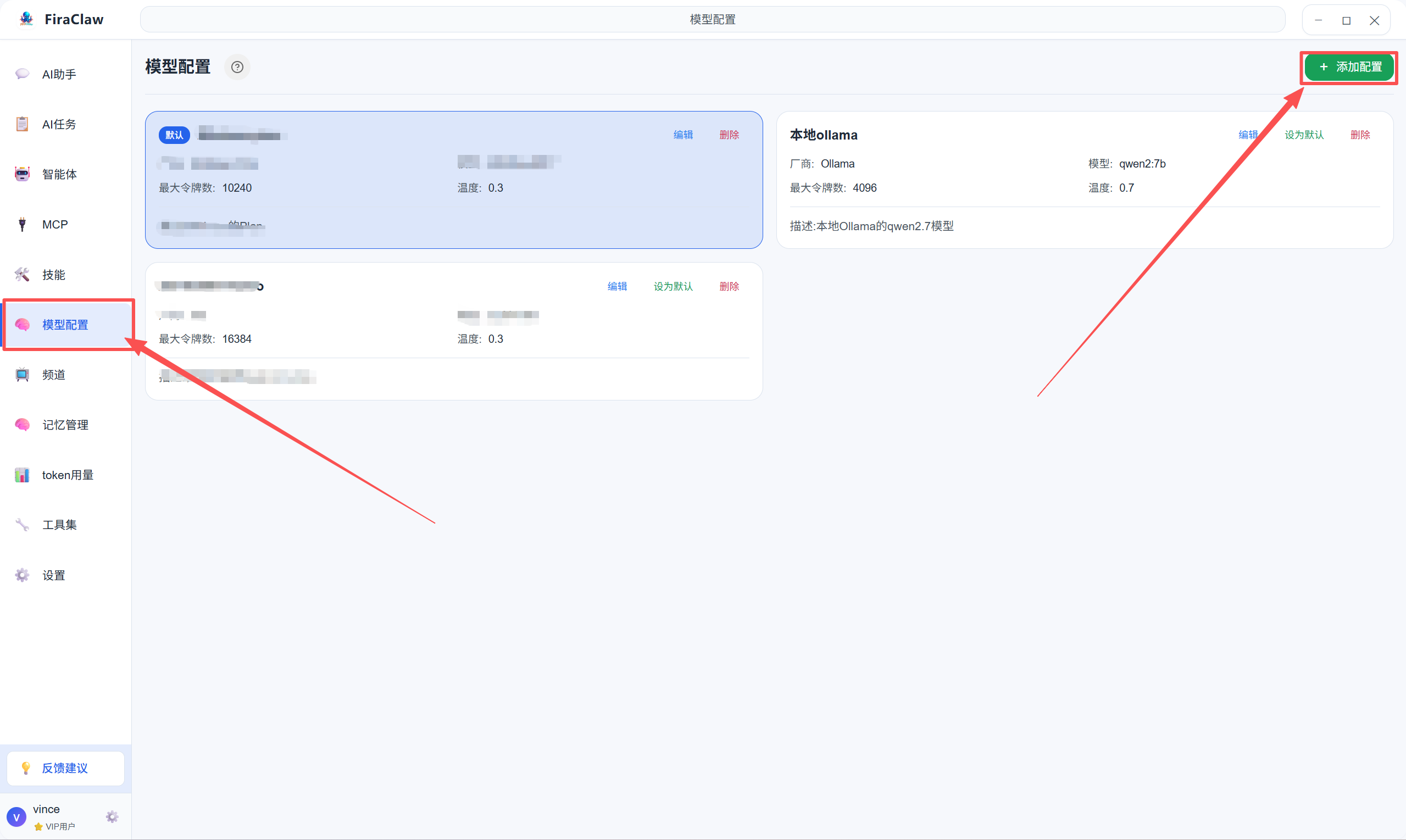
Fill in your API provider information (such as domestic models like Zhipu GLM, MiniMax, Alibaba Bailian, DeepSeek, or international models like OpenAI, Anthropic, also supports private deployment addresses).
Set as Default: Turn on the "Default Model" switch.
Note: This step must be completed before the CEO Agent can start thinking.
Recommended API Providers
Zhipu GLM
🧩 Top domestic programming large model, adapted to 20+ mainstream tools, excellent cost-performance ratio

👉 Join now: https://www.bigmodel.cn/glm-coding?ic=LRQWBYKQ1R
MiniMax
🚀 MiniMax Token Plan is here! New voice, music, video and image generation benefits. Invite friends for dual benefits to enhance your development experience!
Friends enjoy 10% off exclusive discount + Builder benefits, you get rebates + community privileges!

👉 Join now: https://platform.minimaxi.com/subscribe/token-plan?code=3mhcskkoZo&source=link
Step 4: Chat with CEO Agent
Now you can start working through the following methods:
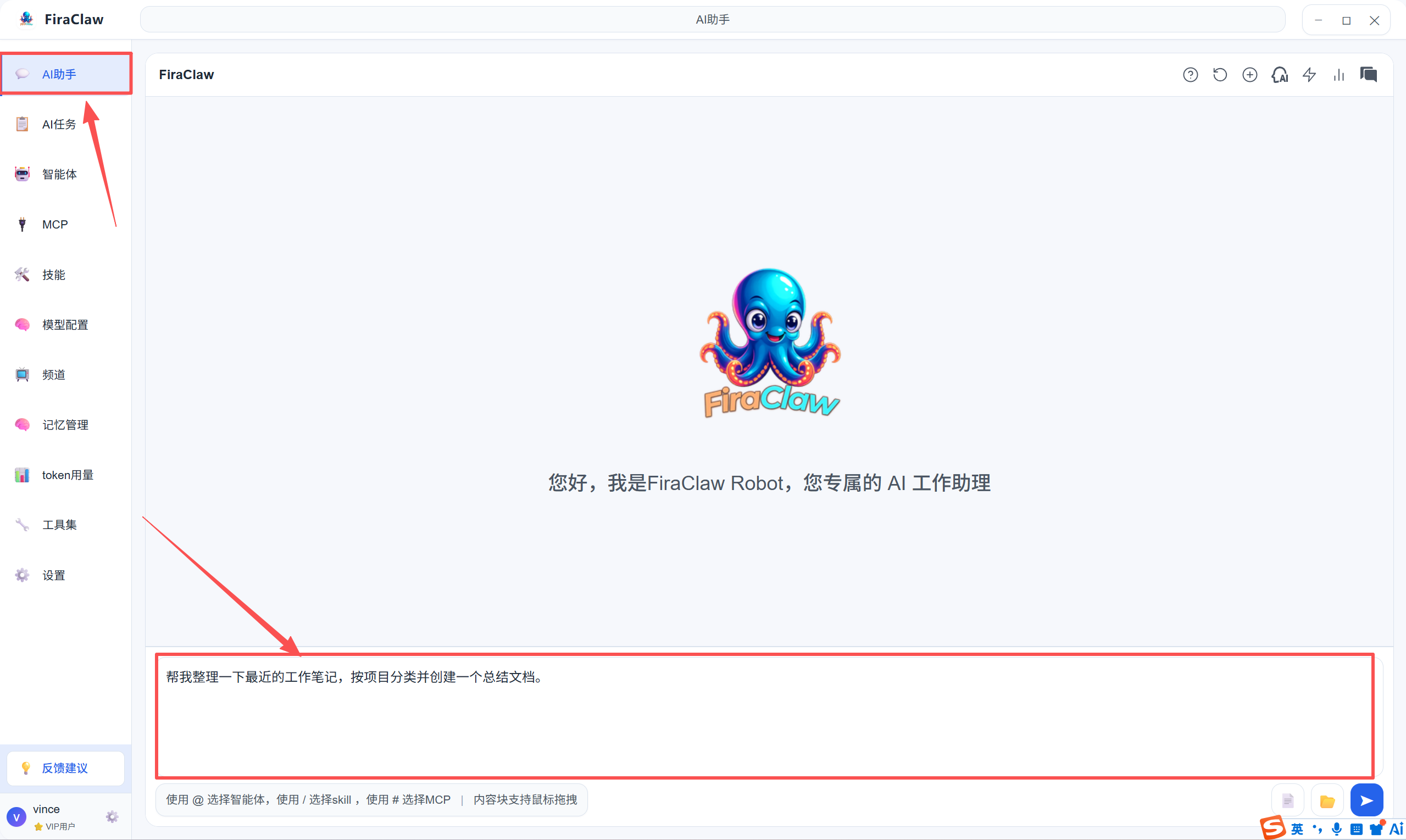
- Click AI Assistant in the left menu, select "CEO Agent".
- Try entering your first instruction in the bottom input box:
- Try this: "Help me organize my recent work notes, categorize them by project and create a summary document."
Step 5: Experience Advanced Features
Scenario A: Create a Scheduled Task
Path: Click AI Tasks > New Task.
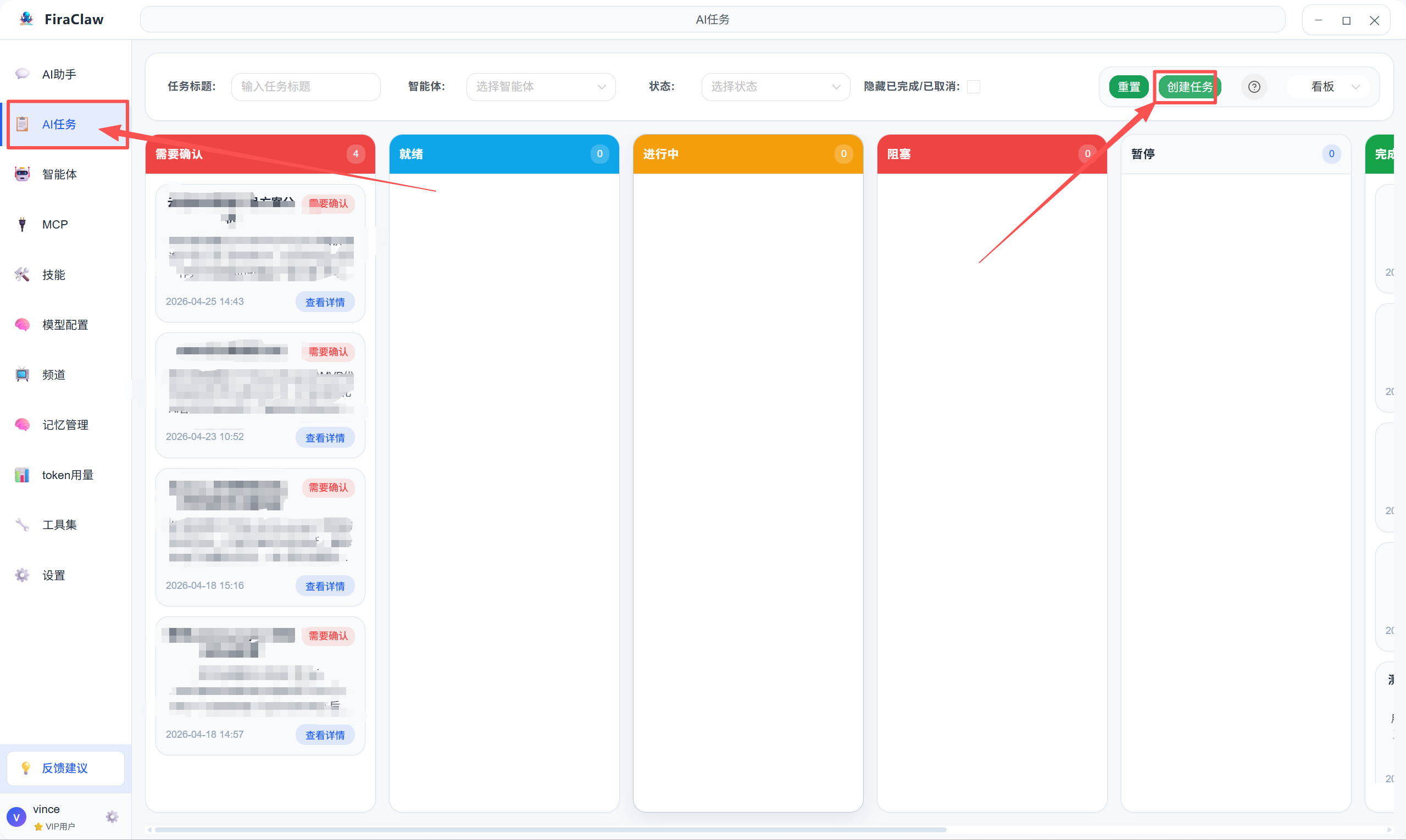
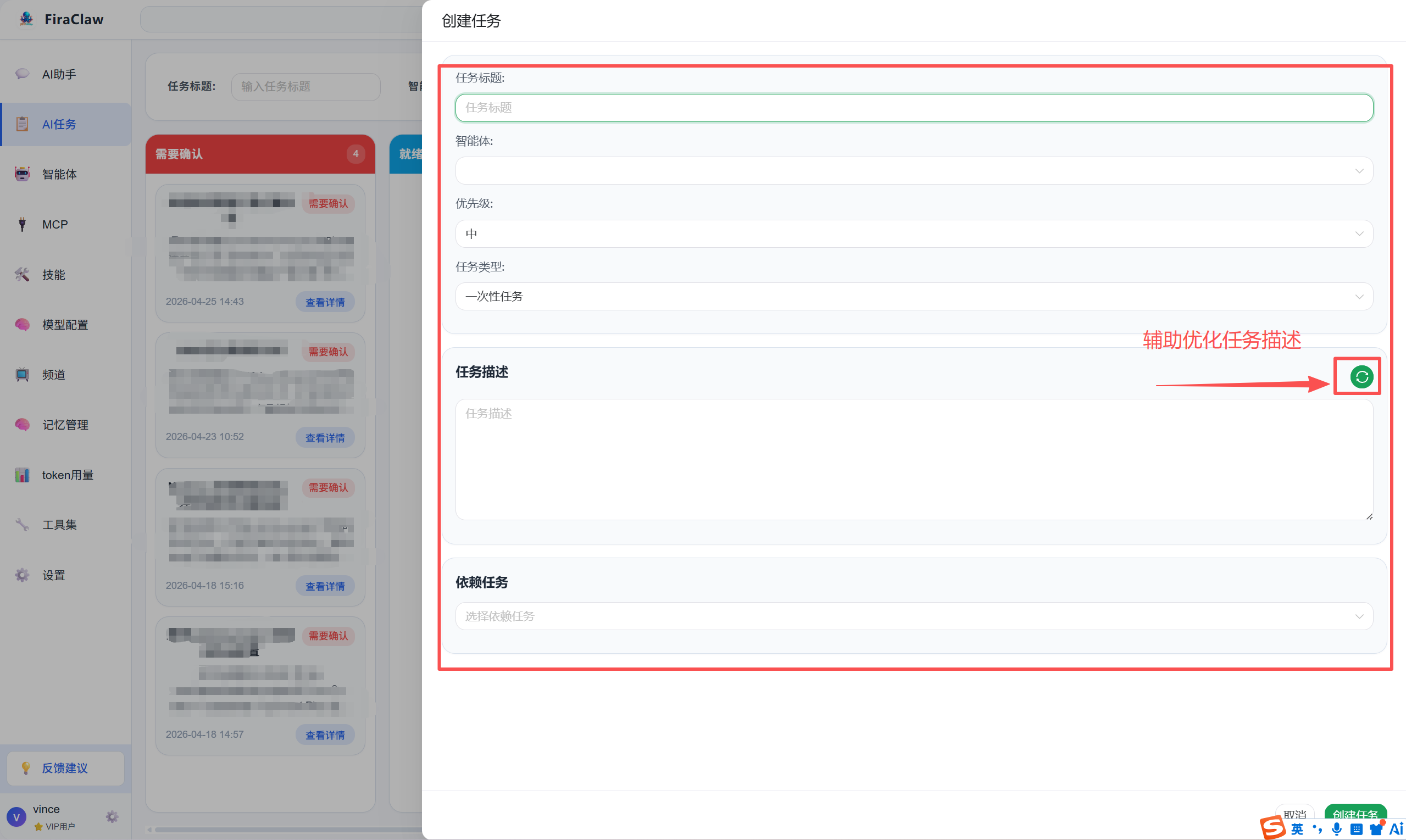
Operation: Select "Scheduled Task", enter the task content (e.g., "Crawl XX website news summary every day at 9 AM"), and specify the agent responsible for execution.
Note: Please ensure the FiraClaw program keeps running for tasks to be triggered on time.
Scenario B: Let AI Help You Create a New Employee (Agent)
Enter in the CEO Agent dialog:
- "Help me create an agent specialized in writing Python scripts, name it CodeMaster, and make it able to read and write local files."
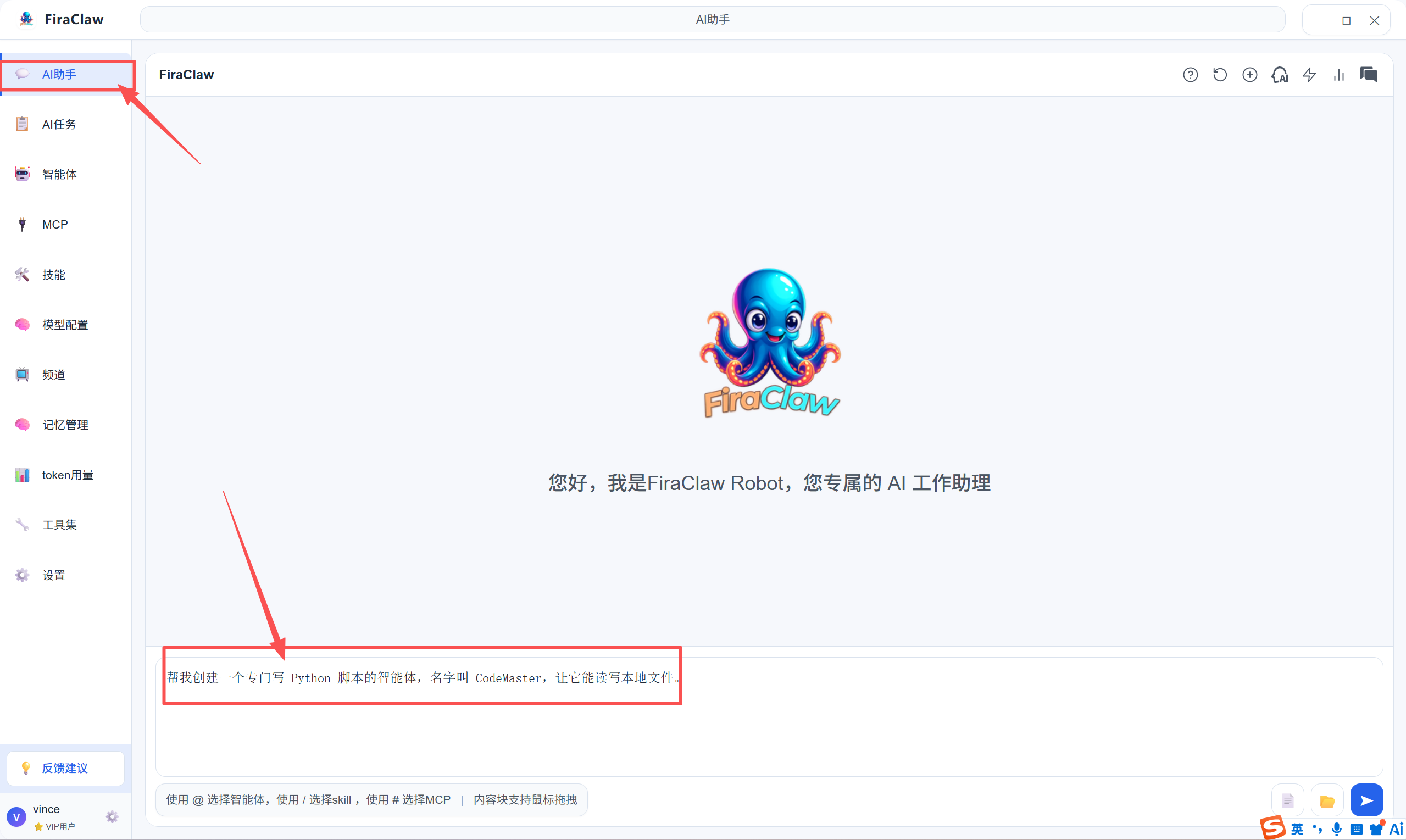
The CEO will automatically call the skill-creator skill to complete the configuration for you. After completion, you can find it in the Agent list.
💡 Tips for Beginners
- Multiple Sessions: If you're writing code and suddenly want to ask a translation question, it's recommended to click New Session in the upper left. Asking questions in different sessions helps AI avoid confusing context and gives more accurate responses.
- Shortcut Keys: Press
/in the dialog box to quickly summon the Skill and MCP service list. - Memory Function: If you tell AI "I prefer using Python to write code", it will automatically store this in memory, and will prioritize using Python when writing code next time.
FAQ
Q1: Why is it recommended to open several sessions instead of talking about everything in one long conversation?
A: Large models tend to "lose focus" or confuse early settings when processing very long contexts. Keeping coding sessions separate from casual chat sessions allows the CEO to focus more on the current task context and produce higher quality output.
Q2: I asked CEO to create a task, but my computer went to sleep. Will the task still execute?
A: No. AI task execution depends on the FiraClaw client running continuously. Please keep your computer powered on and not in sleep mode, or keep the software running in the foreground/background.
Q3: How does CEO know which agent to hire?
A: CEO will read the names and descriptions of all created agents in your system. Therefore, it's recommended to write clear descriptions when creating professional agents (e.g., "Specialized in writing Python scripts, good at web crawlers and data processing").
Q4: During the conversation, AI showed "Calling tool Oculos MCP". What is this?
A: This means CEO is operating your desktop software through the system's built-in MCP service (e.g., opening folders, clicking mouse). This is a normal automatic process. Please do not interfere with mouse operations at this time.
Next Steps
- View Agent Configuration Guide to learn how to create more professional agents
- View Task Panel Guide to learn how to manage and monitor tasks
- View AI Assistant Guide to learn more conversation tips