Model Configuration Management
1. Overview
Model configuration is one of the core settings in FiraClaw. It determines which AI model agents use for thinking and executing tasks. By properly configuring models, you can enable agents to perform optimally in different scenarios.
2. Model Types
FiraClaw supports the following types of models:
- Domestic Models: Such as DeepSeek, Zhipu GLM, MiniMax, Alibaba Bailian, etc.
- International Mainstream Models: Such as OpenAI GPT series, Anthropic Claude series, etc.
- Other Third-Party Models: Supports various mainstream AI models
- Private Deployment Models: Supports connecting to local or privately deployed models
3. Managing Model Configurations
3.1 Viewing Model Configurations
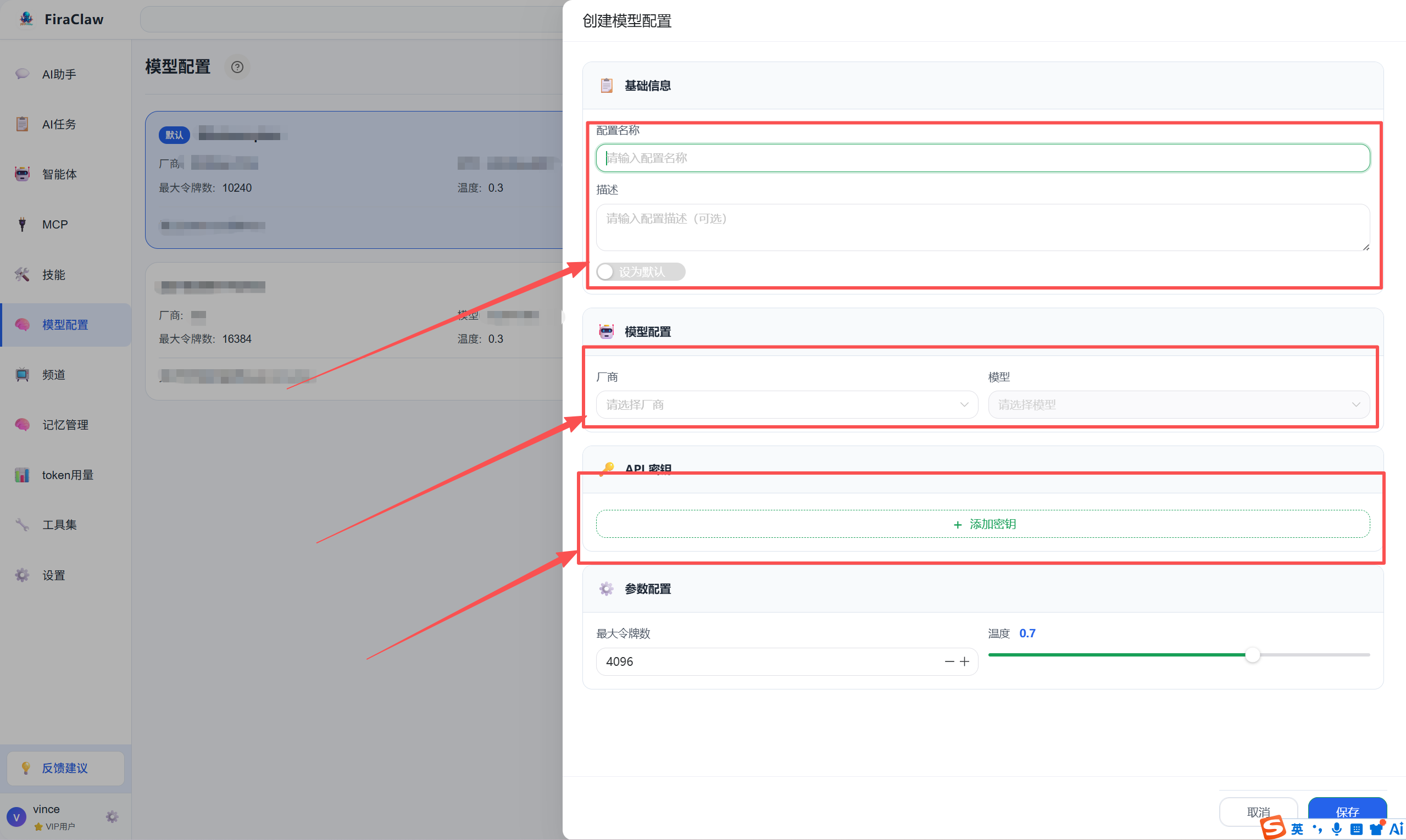
Click Model Configuration in the left menu.
In the model list, you can see all configured models and their status.
3.2 Creating a Model Configuration
Click the New Model button in the upper right corner of the model configuration page.
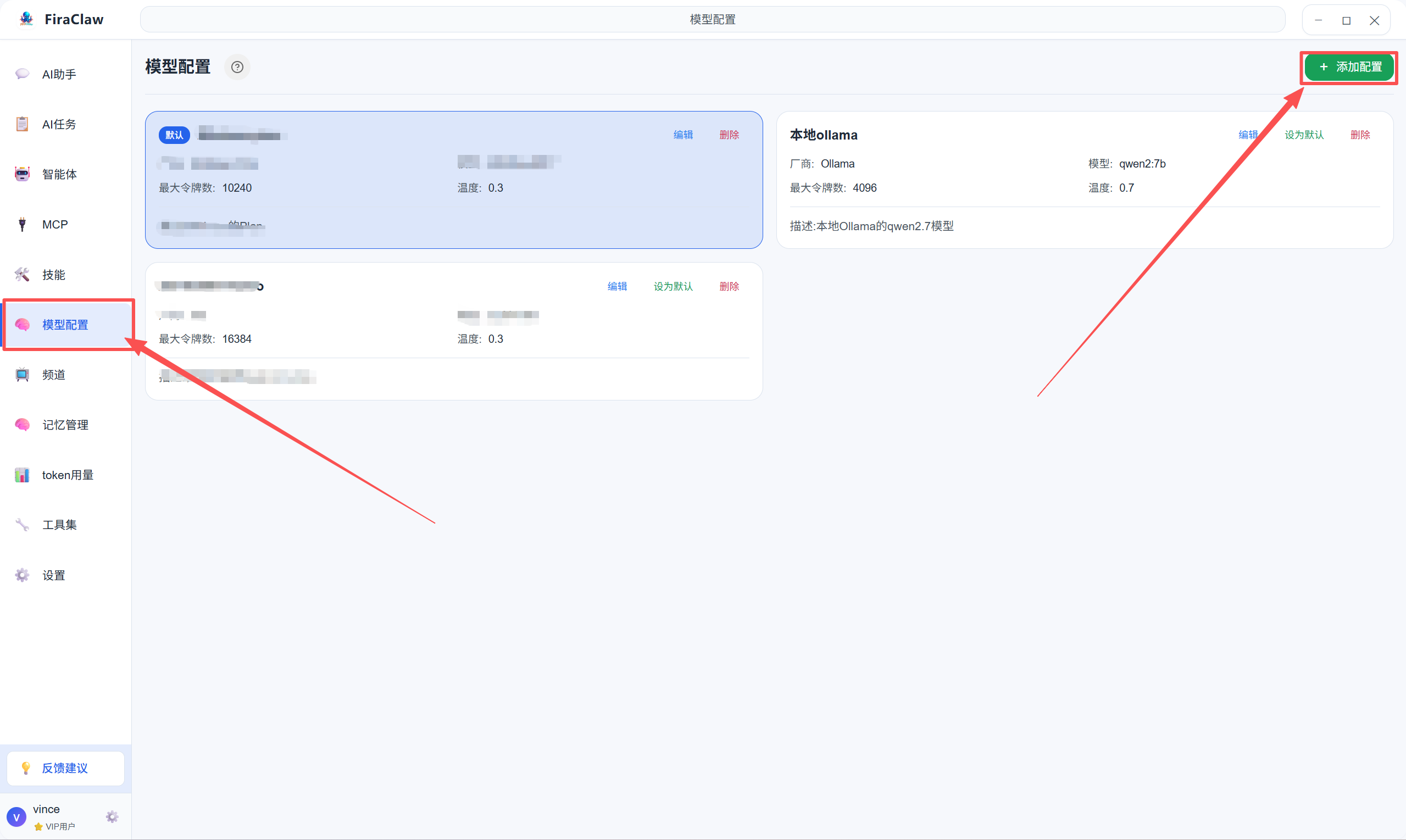
Fill in the basic model information:
- Name: Name of the model for easy identification
- Description: Functional description of the model
- Model Type: Select the model type, such as OpenAI, DeepSeek, etc.
- API Key: Fill in the model's API Key
- API Address: Fill in the model's API address (default is official address, private deployment models need to fill in custom address)
- Model Parameters: Set model parameters such as temperature, max tokens, etc.
Set as Default: Turn on the "Default Model" switch to set this model as the default model
Click the Save button to create the model configuration.
3.3 Editing Model Configuration
- In the model list, find the model that needs to be edited.
- Click the Edit button to modify the model configuration.
- Click the Save button to apply changes.
3.4 Deleting Model Configuration
- In the model list, find the model that needs to be deleted.
- Click the Delete button to confirm the deletion.
- Note: Please keep at least one default model configuration, otherwise agents will not be able to think.
4. Model Configuration Strategies
4.1 Selecting Models Based on Task Type
- High logic requirements tasks (such as coding): Recommended to configure Claude or GPT-4 type models
- Simple repetitive tasks (such as format conversion): Recommended to configure DeepSeek or GPT-3.5 type models to save costs
- Long text processing: Recommended to configure models that support long context
- Creative writing: Recommended to configure models with strong creative abilities
4.2 Assigning Models to Different Agents
- Go to the Agent configuration page.
- Select the agent that needs configuration and click the Edit button.
- In the Model Configuration tab, select the model suitable for that agent.
- Click the Save button to complete configuration.
5. Model Performance Evaluation
5.1 Evaluation Metrics
- Response Speed: Model's response time
- Accuracy: Accuracy of model output
- Creativity: Model's creative ability
- Context Understanding: Model's ability to understand long context
- Cost Efficiency: Model's cost-performance ratio
5.2 Testing Methods
- Configure different models for agents.
- Let agents execute the same tasks.
- Compare the performance of different models and select the most suitable one.
6. FAQ
Q1: Why do I need to set a default model?
A: The default model is the agent's default "brain". If no default model is set, agents will not be able to think and execute tasks.
Q2: How to switch models?
A: On the model configuration page, select a model and turn on the "Default Model" switch to set that model as the default model.
Q3: Can I use multiple models simultaneously?
A: Yes, you can configure different models for different agents, and you can also use different models for different tasks of the same agent.
Q4: Will model API Keys be stored securely?
A: Yes, model API Keys are encrypted and stored locally, and will not be uploaded to the cloud, ensuring the security of your API Keys.