Installation Guide
Windows Installation
Step 1: Download the Installer
- Visit the FiraClaw Download Page
- Click the "Windows Installer" button
- Download the
.exeinstallation file to local
Step 2: Run the Installer
- Double-click the downloaded
.exefile - The system may prompt "User Account Control", click "Yes" to allow installation
- Follow the installation wizard instructions:
- Select installation language
- Accept the license agreement
- Select installation location (recommended to use default location)
- Select Start menu folder
- Choose whether to create desktop shortcut
Step 3: Complete Installation
- Click the "Install" button to start the installation process
- Wait for installation to complete
- Click the "Finish" button to exit the installation wizard
- FiraClaw will start automatically, or you can launch it from the Start menu or desktop shortcut
macOS Installation
Step 1: Download the Installer
- Visit the FiraClaw Download Page
- Click the "macOS Installer" button
- Download the
.dmginstallation file to local
Step 2: Install the Software
- Double-click the downloaded
.dmgfile - Open the installation window
- Drag the FiraClaw icon to the Applications folder
Step 3: Launch FiraClaw
- Open the Applications folder
- Find and double-click the FiraClaw application
- The system may prompt "Cannot open FiraClaw because it is from an unidentified developer", click "Cancel"
- Go to "System Preferences" > "Security & Privacy"
- In the "General" tab, click "Open Anyway"
- Click "Open" again to confirm
- FiraClaw will launch
Step 4: Launch FiraClaw
- Launch FiraClaw from the Applications menu
- Or run in terminal:bash
firaclaw
First Launch
Step 1: Login/Register
FiraClaw supports two login methods:
Method A: WeChat QR Code Login (Recommended)
When you first launch FiraClaw, you will see the login/register page
Click the "WeChat Login" button
Use your phone WeChat to scan the QR code on screen
Confirm login authorization to complete login

Method B: Email Registration/Login
When you first launch FiraClaw, you will see the login/register page
Click the "Register" button
Fill in your email address and password
Click the "Create Account" button
The system will send a verification email to your mailbox. Please click the link in the email to verify your account

After verifying the account, return to the FiraClaw login page
Enter your email address and password
Click the "Login" button

Step 2: Initial Setup
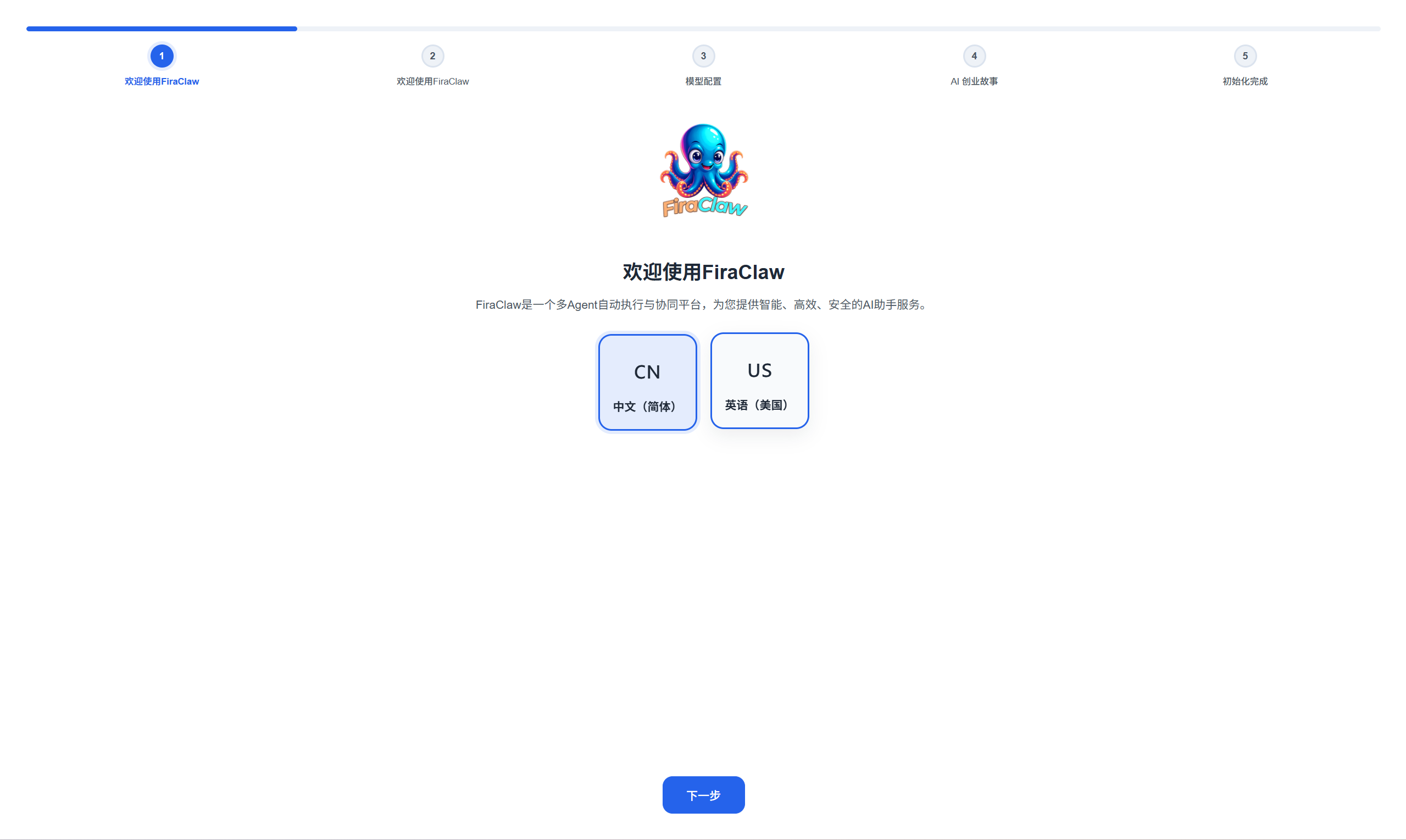
After logging in, you will see the initial setup wizard
Select your language preference
Configure model
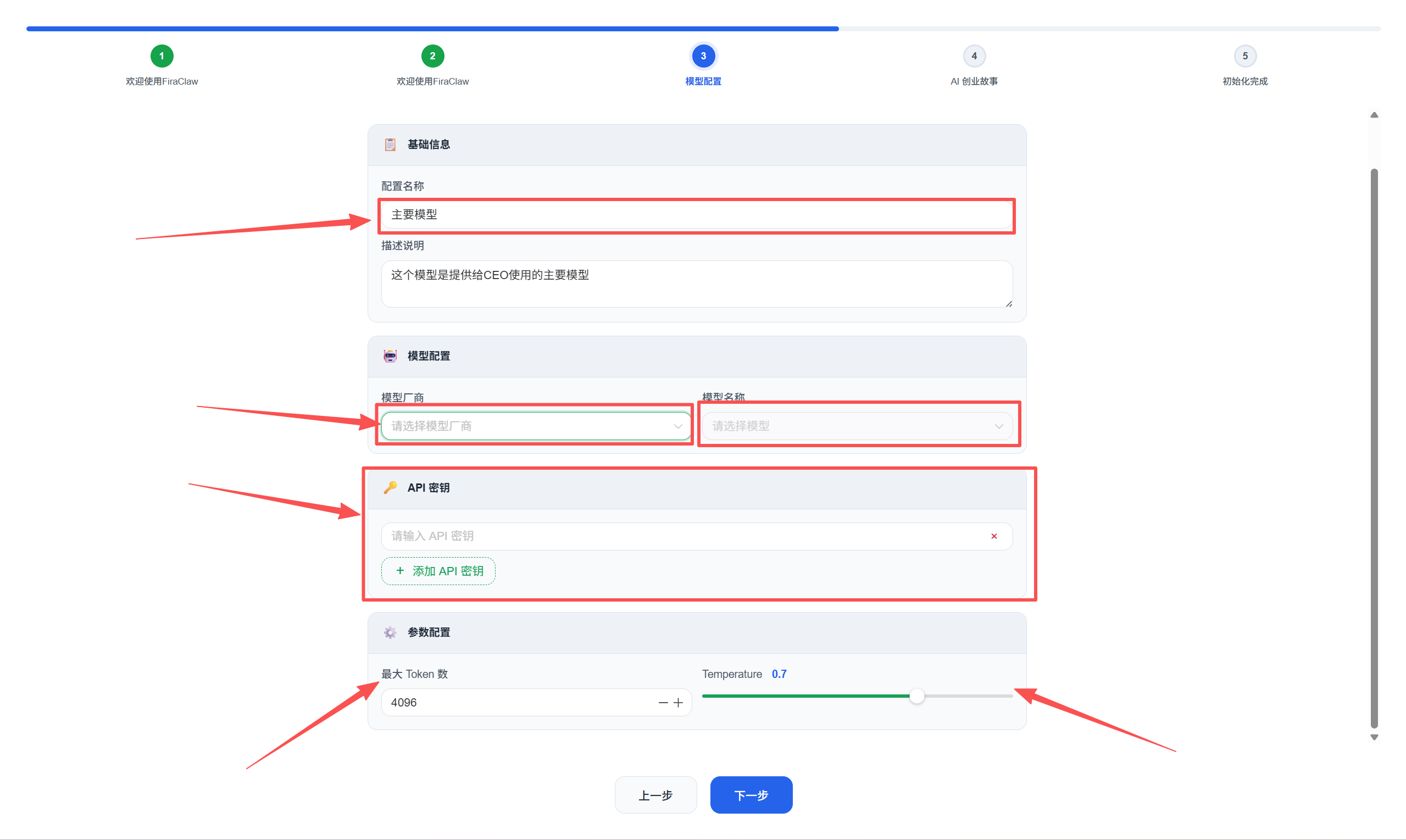
Click the "Finish" button

Startup Failure
Windows:
- Check if there are enough system resources
- Try running as administrator
- Check firewall settings
- View system logs to understand specific errors
macOS:
- Check system permissions
- Ensure the application is correctly installed
- Try restarting the system
- View console logs to understand specific errors
Contact Support
If you encounter issues that cannot be resolved, please contact the FiraClaw support team:
Email: support@firaclaw.cn
WeCom: Scan the QR code below to add customer service